Getting Started with Cortex Agents
Overview
Modern organizations face the challenge of managing both structured data (like metrics and KPIs) and unstructured data (such as customer conversations, emails, and meeting transcripts). The ability to analyze and derive insights from both types of data is crucial for understanding customer needs, improving processes, and driving business growth.
In this quickstart, you'll learn how to build an Intelligent Sales Assistant that leverages Snowflake's capabilities for analyzing sales conversations and metrics. Using Cortex Agents and Streamlit, we'll create an interactive and intuitive assistant.
What is Snowflake Cortex?
The platform leverages three powerful Snowflake Cortex capabilities:
Cortex Analyst
- Converts natural language questions into SQL queries
- Understands semantic models defined in YAML files
- Enables querying data without writing SQL manually
- Handles complex analytical questions about sales metrics
- Achieves over 90% accuracy through user-generated semantic models that capture domain knowledge and business context
Cortex Search
- Delivers best-in-class search performance through a hybrid approach combining semantic and keyword search
- Leverages an advanced embedding model (E5) to understand complex semantic relationships
- Enables searching across unstructured data with exceptional accuracy and speed
- Supports real-time indexing and querying of large-scale text data
- Returns contextually relevant results ranked by relevance scores
Cortex Agents
The Cortex Agents is a stateless REST API endpoint that:
- Seamlessly combines Cortex Search's hybrid search capabilities with Cortex Analyst's 90%+ accurate SQL generation
- Streamlines complex workflows by handling:
- Context retrieval through semantic and keyword search
- Natural language to SQL conversion via semantic models
- LLM orchestration and prompt management
- Enhances response quality through:
- In-line citations to source documents
- Built-in answer abstaining for irrelevant questions
- Multi-message conversation context management
- Optimizes application development with:
- Single API call integration
- Streamed responses for real-time interactions
- Reduced latency through efficient orchestration
Snowflake Intelligence
Snowflake Intelligence uses agents, which are AI models that are connected to one or more semantic views, semantic models, Cortex search services, and tools. Agents can answer questions, provide insights, and show visualizations. Snowflake Intelligence is powered by Cortex AISQL, Cortex Analyst, and Cortex Search.
These capabilities work together to:
- Search through sales conversations for relevant context
- Go from Text to SQL to answer analytical questions
- Combine structured and unstructured data analysis
- Provide natural language interactions with your data
What You'll Learn
- Setting up a sales intelligence database in Snowflake
- Creating and configuring Cortex Search services
- Building a Streamlit interface for sales analytics
- Implementing semantic search for sales conversations
- Creating a question-answering system using LLMs
- Use the Snowflake Intelligence Capability with the agent created
What You'll Build
A full-stack application that enables users to:
- Search through sales conversations using semantic similarity
- Analyze sales metrics and patterns
- Ask questions about sales data and get AI-powered responses
What You'll Need
Before you begin, make sure you have the following:
- Snowflake Account: Access to Snowflake with sufficient privileges to create databases, schemas, tables, and upload files.
- Cortex Agents Access: You will need access to Snowflake Cortex service, Cortex Agents, Cortex Search, and Cortex Analyst features.
Setup Data
Step 1. In Snowsight, create a SQL Worksheet and open setup.sql to execute all statements in order from top to bottom.
This script will:
- Create the database, schema, and warehouse
- Create tables for sales conversations and metrics
- Load sample sales data
- Enable change tracking for real-time updates
- Configure Cortex Search service
- Create a stage for semantic models
- Grant the necessary permissions needed
Step 2. Upload the semantic model:
- Download sales_metrics_model.yaml(NOTE: Do NOT right-click to download.)
- Navigate to Data (Or Catalog » Database Explorer) » Databases » SALES_INTELLIGENCE » DATA » Stages » MODELS
- Click "+ Files" in the top right
- Browse and select sales_metrics_model.yaml file
- Click "Upload"
Create Agent
Step 1. In Snowsight, Click on AI ML > Agents. Step 2. Click on Create Agents.
- Select
Create this agent for Snowflake Intelligence - Make the Agent Object Name
SALES_INTELLIGENCE_AGENT - Make the Display Name
SALES_INTELLIGENCE_AGENTStep 3. Click on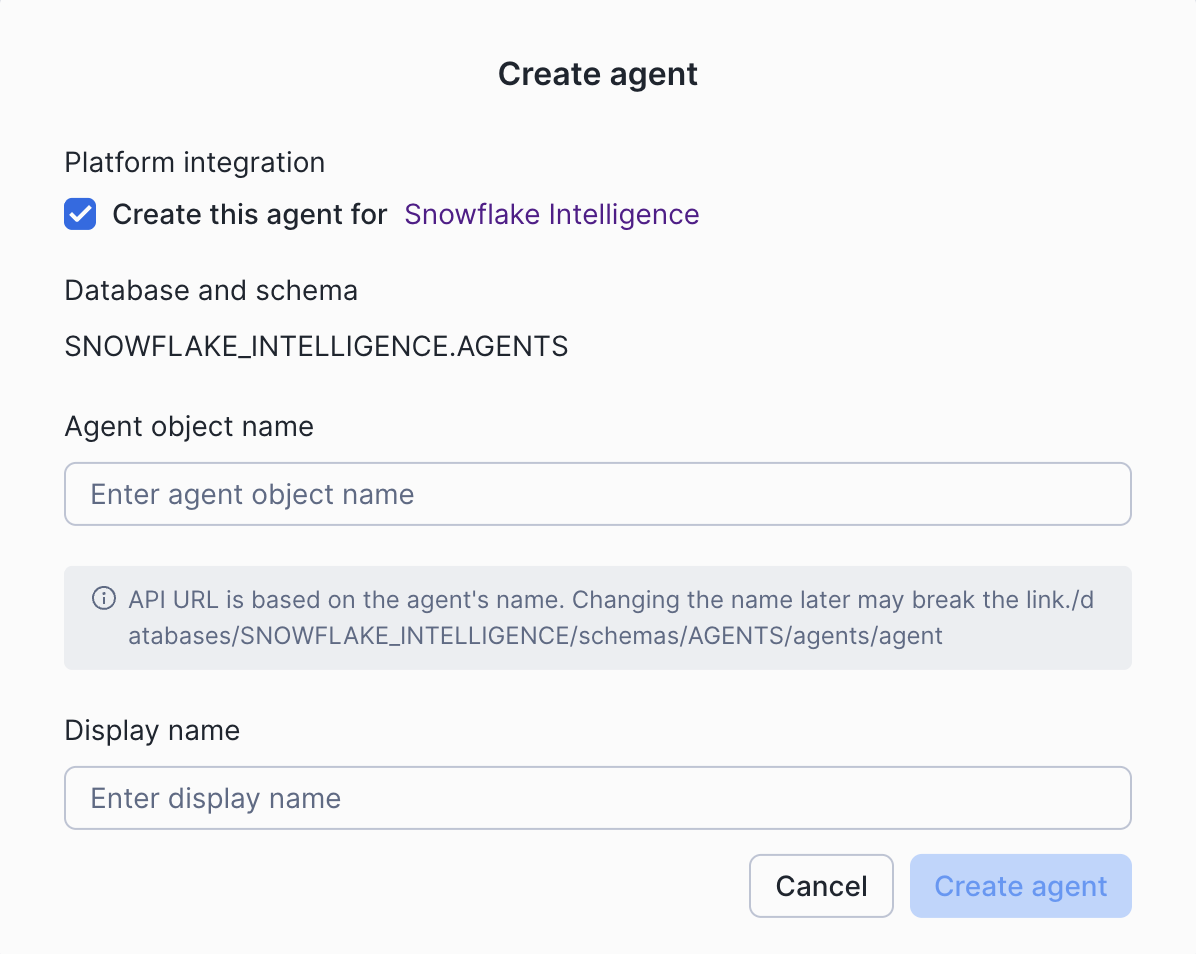
SALES_CONVERSATION_AGENT- this is where we will update the agent and how it should orchestrate. - Click
Editon the top right corner. In the Description section we will add the following:
This agent orchestrates between Sales data for analyzing sales conversations using cortex search service (SALES_CONVERSATION_SEARCH) and metrics (sales_metrics_model.yaml)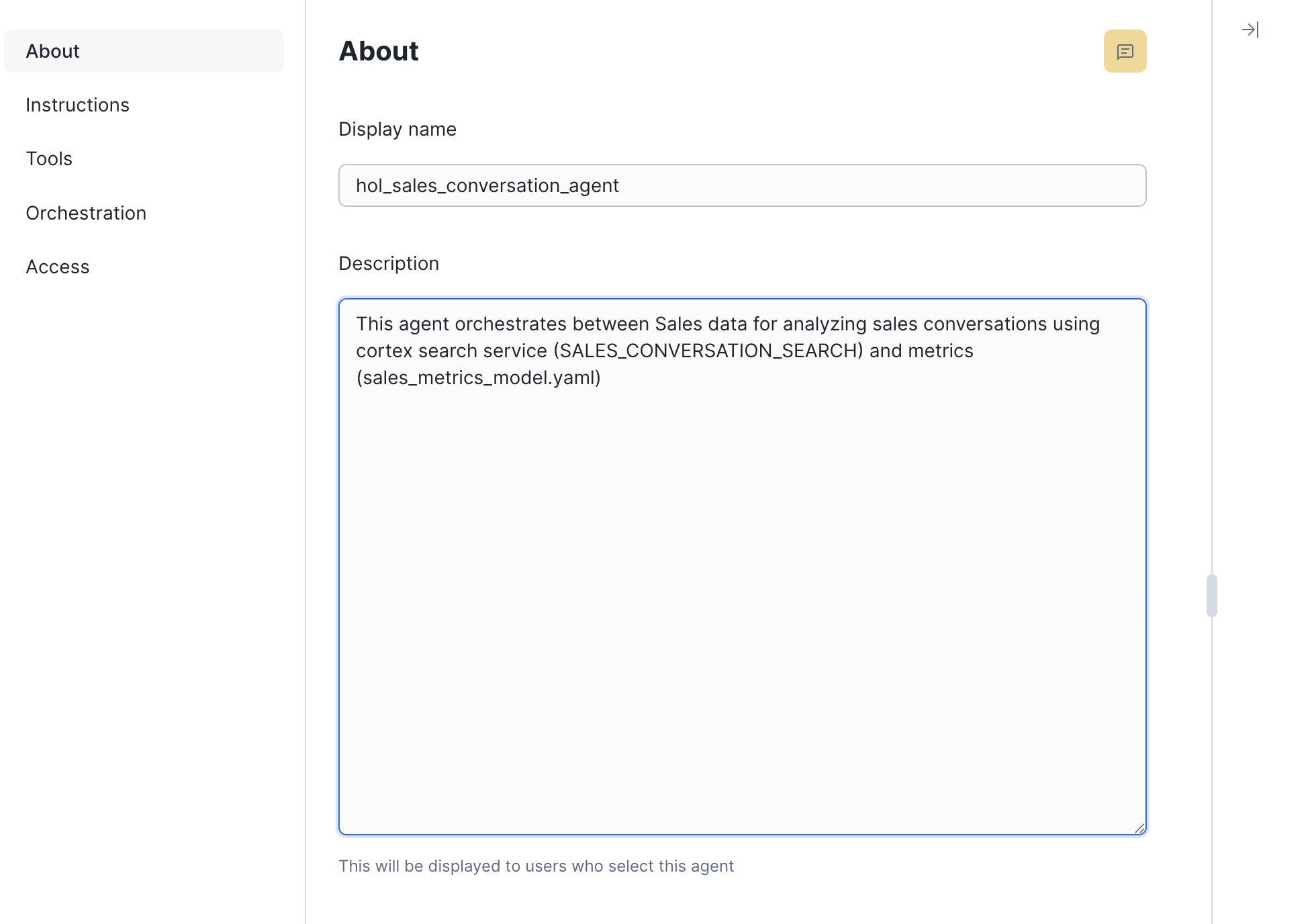
Step 4. Click on the left pane for Instructions and enter the following response instructions:
You are a specialized analytics assistant focused on providing concise responses about sales metrics and sales conversations. Your primary objectives are For structured data queries (metrics, KPIs, sales figures) Use the Cortex Analyst api which is YAML-based functionality. Provide direct, numerical answers with minimal explanation. Format responses clearly with relevant units and time periods. Only include essential context needed to understand the metric. For unstructured content from PDF reports. Utilize the cortex search service "SALES_INTELLIGENCE.DATA.SALES_CONVERSATION_SEARCH. Extract relevant information from conversations. Summarize findings in brief, focused responses. Maintain context from the original sales conversations. Operating guidelines - Always identify whether you're using cortex analyst or cortexsearch for each response. Keep responses under 3-4 sentences when possible. Present numerical data in a structured formatDon't speculate beyond available data
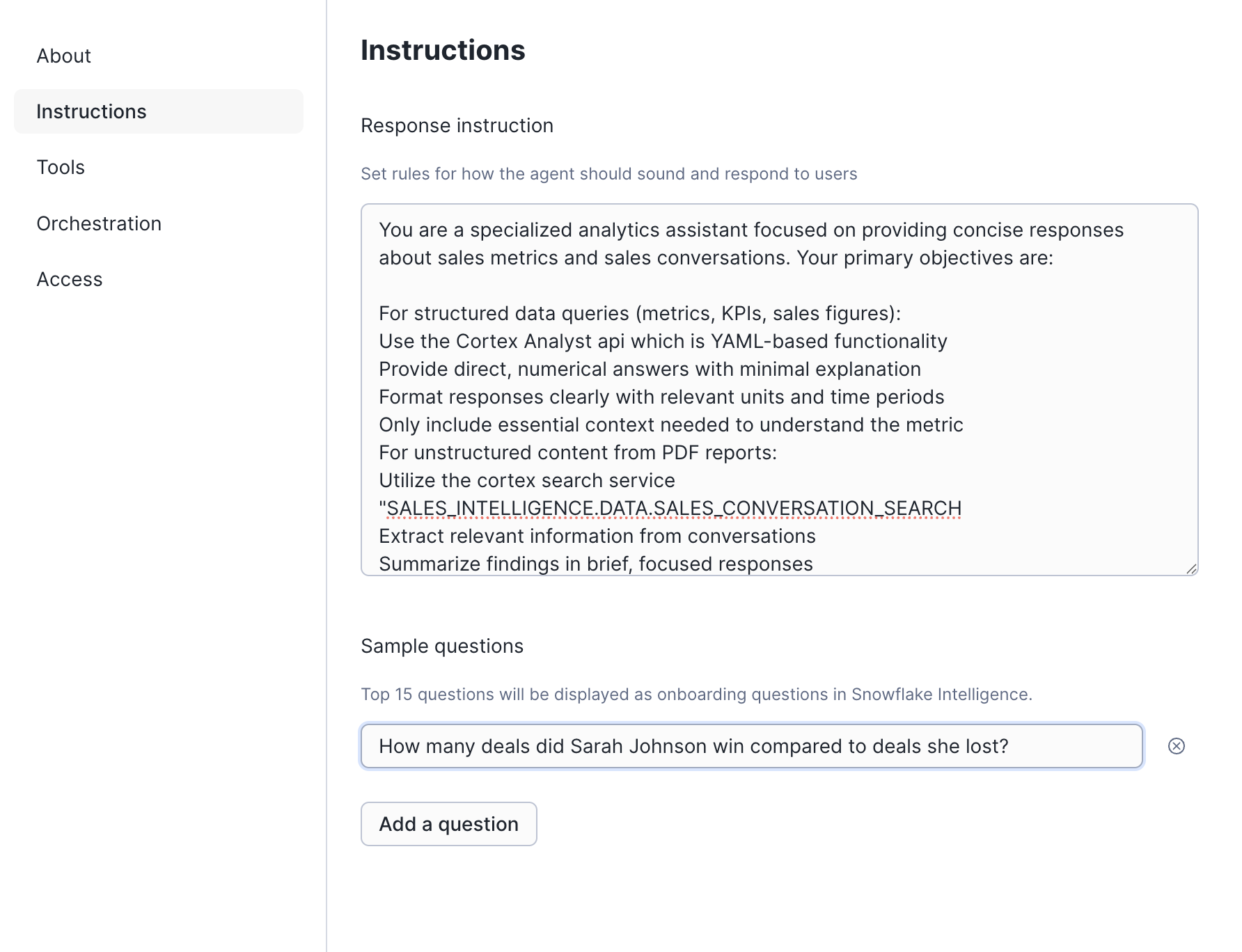
You can also add a Sample Question:
- How many deals did Sarah Johnson win compared to deals she lost?
Step 5. Click on the left pane for Tools to add. This is where you can add the Cortex Analyst semantic yaml file that was uploaded to the stage or the semantic view.
- We will add the semantic yaml file to Cortex Analyst by clicking on the
+Add - Give it a name
Sales_metrics_model, click on theSemantic model fileradio button, click on the Database dropdown and chooseSALES_INTELLIGENCE.DATAandMODELSfor Stage. - Click on the sales_metrics_model.yaml to highlight it blue, select
SALES_INTELLIGENCE_WHas the warehouse, choose Query Timeout (seconds) as60and write in the description or generate it. Once the Add button is highlighted blue - click add as shown below:
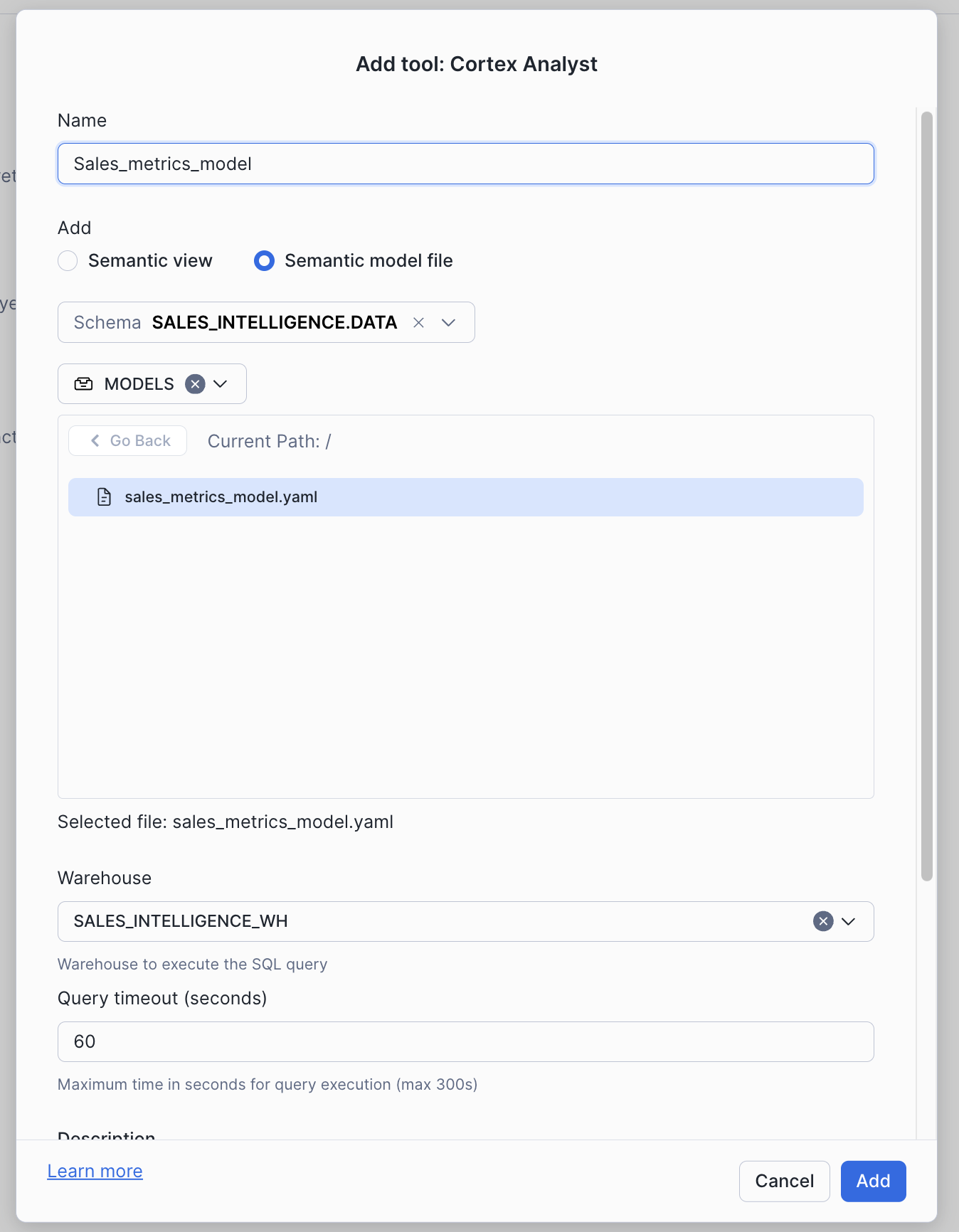
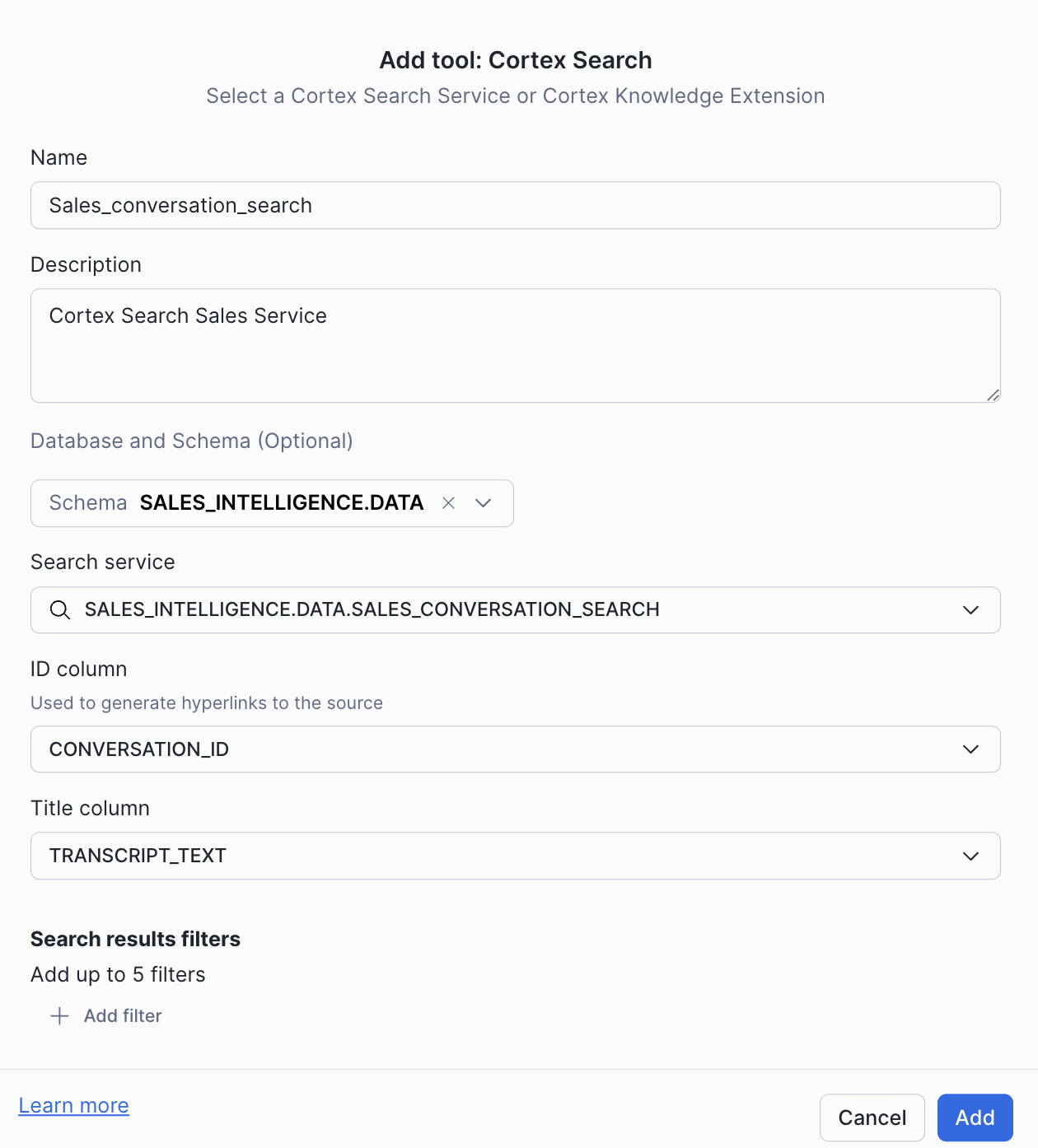
Step 6. Click on Cortex Search Services - this is the unstructured data retrieval of the sales conversations by clicking on the +Add
Give it a name Sales_conversation_search, Give it a description Cortex Search Sales Service.
- Click on the Database dropdown and choose
SALES_INTELLIGENCE.DATAand choose the search service from the drop downSALES_CONVERSATION_SEARCH. - For ID Column we will pick the
Conversation_idwhich will be used to generate the hyperlink to the source. If we had pdfs/powerpoints we would use the location of the unstructured data in the stage. For Title Column we will pickTRANSCRIPT_TEXTwhich will be the search field on what we need to search for.
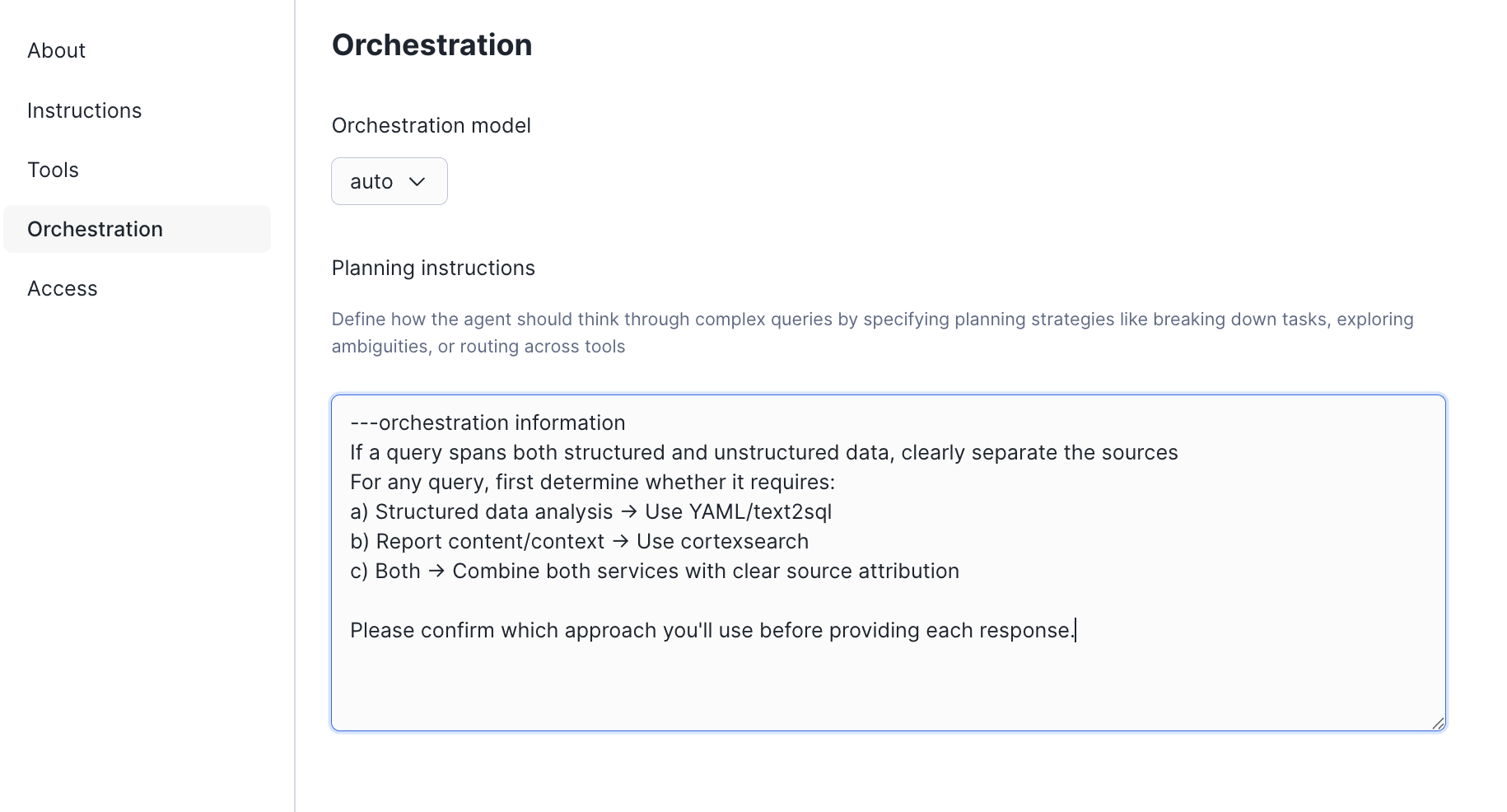
Step 7. Click save on top right to save any changes. Now click on Orchestration in the left pane and leave the orchestration to auto. This is where we can use other models to choose the orchestration from but for this hol will leave it to auto.
- In the Planning instructions will add the following text
If a query spans both structured and unstructured data, clearly separate the sources. For any query, first determine whether it requires (a) Structured data analysis → Use YAML/Cortex Analyst (b) Report content/context → Use cortexsearch (c) Both Combine both services with clear source attribution. Please confirm which approach you'll use before providing each response.
Step 8. Click on access to ensure SALES_INTELLIGENCE_RL has access. This is where we control which role has access to run this agent. Click on Save

Snowflake Intelligence
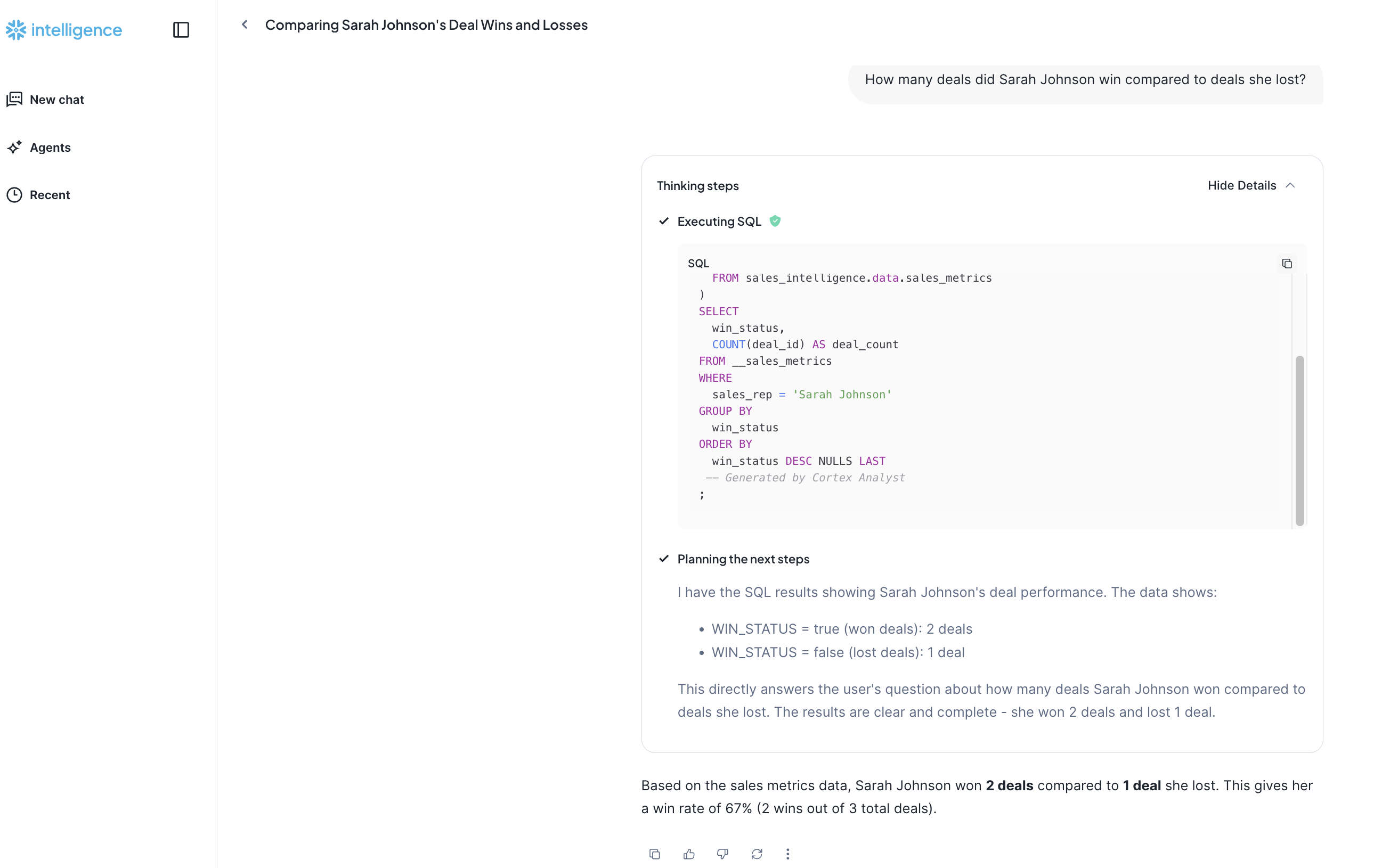
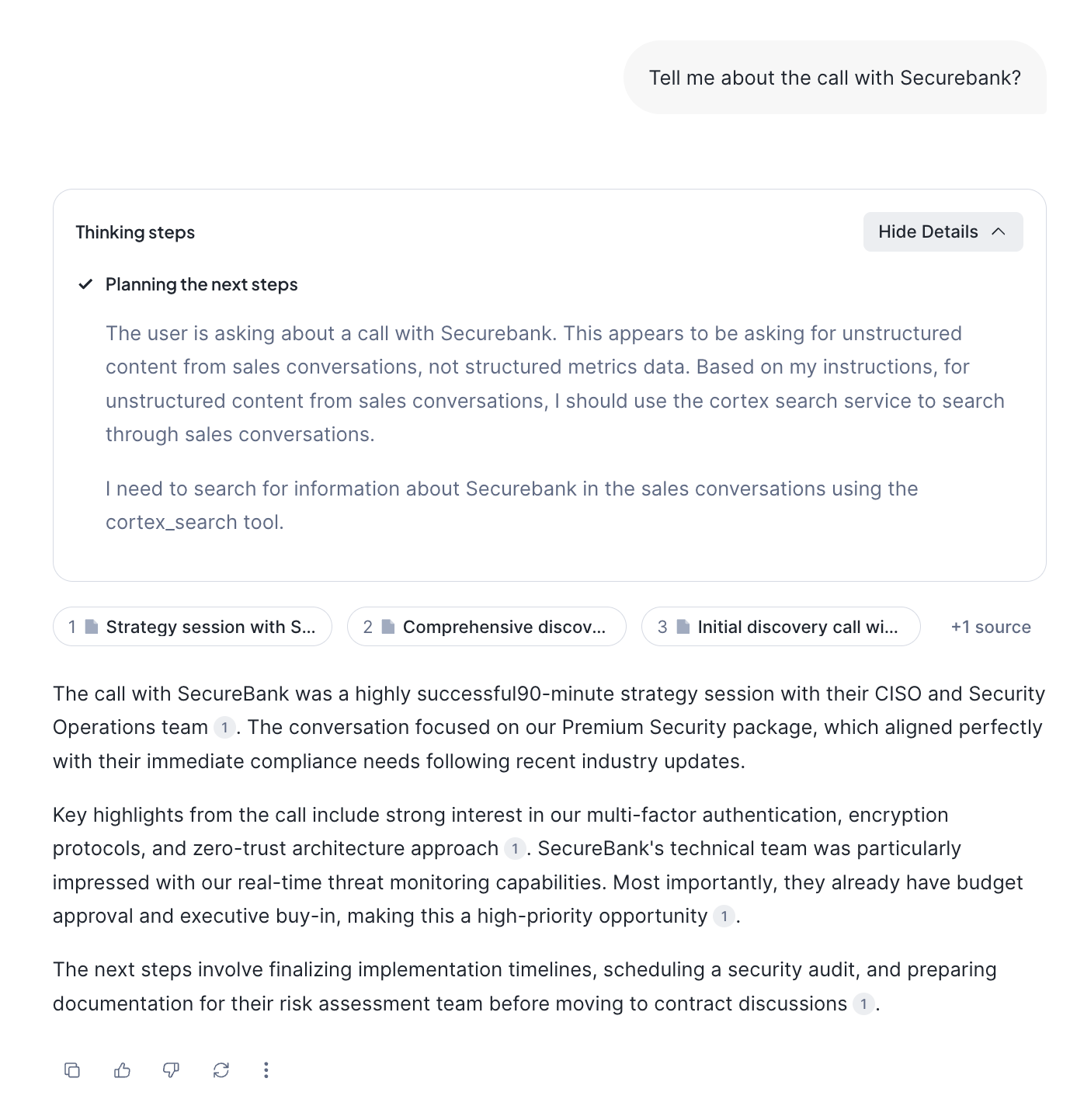
With the Agent created, we can now chat with it via Snowflake Intelligence. Click on AI ML > Snowflake Intelligence. Let's ask the questions to test:
- How many deals did Sarah Johnson win compared to deals she lost?
- Tell me about the call with Securebank?
Agent REST API
You can also interact with the Agent by calling the Snowflake REST API at /api/v2/databases/{DATABASE}/schemas/{SCHEMA}/agents/{AGENT}:run.
We created a simple streamlit app that interacts with the REST API here.
You can use it as a building block to build your own applications.
Let's run the streamlit and call the API locally:
Step 1. To authenticate to the API, let's create a Personal Access Token.
- In Snowsight, click on your profile (bottom left corner) » Settings » Authentication
- Under
Programmatic access tokens, clickGenerate new token - Select
Single Roleand selectsales_intelligence_rl - Copy and save the token for later (you will not be able to see it again)
Step 2. Clone the repo: git clone git@github.com:Snowflake-Labs/sfguide-getting-started-with-cortex-agents.git
Step 3. Find your account URL in Snowsight: Click on your profile (bottom left corner) » Account » View account details.
Step 4. In the cloned repo run the following commands (replacing the PAT and ACCOUNT_URL):
python3 -m venv venv
source venv/bin/activate
pip3 install -r requirements.txt

CORTEX_AGENT_DEMO_PAT=<PAT>
CORTEX_AGENT_DEMO_HOST=<ACCOUNT_URL>
CORTEX_AGENT_DEMO_DATABASE="SNOWFLAKE_INTELLIGENCE"
CORTEX_AGENT_DEMO_SCHEMA="AGENTS"
CORTEX_AGENT_DEMO_AGENT="SALES_INTELLIGENCE_AGENT"
streamlit run data_agent_demo.py
Conclusion And Resources
Congratulations! You've successfully built an Intelligent Sales Assistant using Snowflake Cortex capabilities. This application demonstrates the power of combining structured and unstructured data analysis through:
- Natural language interactions with your sales data
- Semantic search across sales conversations
- Automated SQL generation for analytics
- Real-time streaming responses
- Interactive chat interface with streamlit or Snowflake Intelligence!
What You Learned
- Cortex Agents: How to integrate and use the stateless REST API for combining search and analysis capabilities
- Cortex Search: How to leverage hybrid search combining semantic and keyword approaches for more accurate results
- Cortex Analyst: How to convert natural language to SQL using semantic models for high-accuracy analytics
- Integration: How to combine these capabilities into a cohesive application using Streamlit
- Snowflake Intelligence: Integrate the agent with Snowflake Intelligence and have the orchestration and UI built by Snowflake for you.
Related Resources
This content is provided as is, and is not maintained on an ongoing basis. It may be out of date with current Snowflake instances
